GPU Bound. Moving Everything (and Then Some) to the GPU. Animations.
Once upon a time, the appearance of multitexturing hardware or hardware transformation & lighting (T&L) on GPUs was a huge event. Configuring the Fixed Function Pipeline felt like mysterious shamanic magic. Those who knew how to unlock advanced capabilities of specific graphics chips through D3D9 API hacks were considered enlightened masters. But time passed. Shaders appeared. At first they were heavily limited in both functionality and instruction count. Then came more features, more instructions, and higher execution speed. Compute technologies arrived (CUDA, OpenCL, DirectCompute), and the range of applications for GPU computing power began expanding rapidly.
In this series of articles (hopefully), I'll try to explain and demonstrate some unusual ways modern GPUs can be used during game development beyond traditional graphics effects. The first part is dedicated to animation systems. Everything described here is based on practical experience, has been implemented, and is running in real production projects.
"Ugh, animations again." This topic has already been covered a hundred times. What's so complicated about it? Pack bone matrices into buffers or textures and use them for skinning inside the vertex shader. This was described back in GPU Gems 3 (Chapter 2. Animated Crowd Rendering). It was also implemented in the recent Unite Tech Presentation. But can we do it differently?
Unity Tech Demo
A lot of hype. But is it really that impressive? There's a detailed article on Habr explaining how skeletal animation works inside that tech demo. The parallel jobs are nice, but they're not what we're interested in here. We need to understand what's happening from the rendering perspective.
The large-scale battle consists of two armies. Each army contains... exactly one unit type. Skeletons on the left. Knights on the right. Not exactly a rich variety. Each unit has three LODs (~300, ~1000, ~4000 vertices). Each vertex is influenced by only two bones. The animation system contains only seven animations per unit type. (Remember, there are only two unit types.) Animations are not blended. Instead, they are switched discretely using simple code executed by the jobs that receive so much attention in the presentation. There is no state machine. Since there are only two mesh types, the entire crowd can be rendered using two instanced draw calls. As already mentioned, skeletal animation is based on technology described back in 2009. Innovative? Hmm... Revolutionary? Er... Suitable for modern games? Well, perhaps if your goal is to brag about the FPS-to-unit-count ratio.
The main drawbacks of the pre-baked matrix texture approach are:
- Dependence on frame rate. Double the animation frame count and you double memory usage.
- No animation blending. It can be implemented, but the skinning shader quickly turns into a complicated mess of blending logic.
- No integration with Unity's Animator state machine. It's an extremely useful character-behavior tool that could theoretically be connected to any skinning solution, but because of the previous issue things become very complicated. Just imagine blending nested BlendTrees.
GPAS
GPU Powered Animation System.
I just invented the name. Several requirements were imposed on the new animation system:
- It must be fast. Obviously. We need to animate tens of thousands of different units.
- It must behave exactly like Unity's animation system. If an animation looks a certain way in Unity, it should look exactly the same in the new system. We also need the ability to switch between the built-in CPU implementation and the GPU implementation. This is extremely useful for debugging. When animations start glitching, switching back to the standard animator immediately tells you whether the problem lies in the new system or in the animation/state machine itself.
- All animations must still be configured using Unity Animator. It's convenient, proven, and already available. We'll build our bicycles elsewhere.
Let's rethink animation baking and preparation. We're not going to use matrices. Modern GPUs handle loops quite well and support integer arithmetic natively, so we'll work with keyframes similarly to the CPU.
Let's examine an animation inside Unity's Animation Viewer:
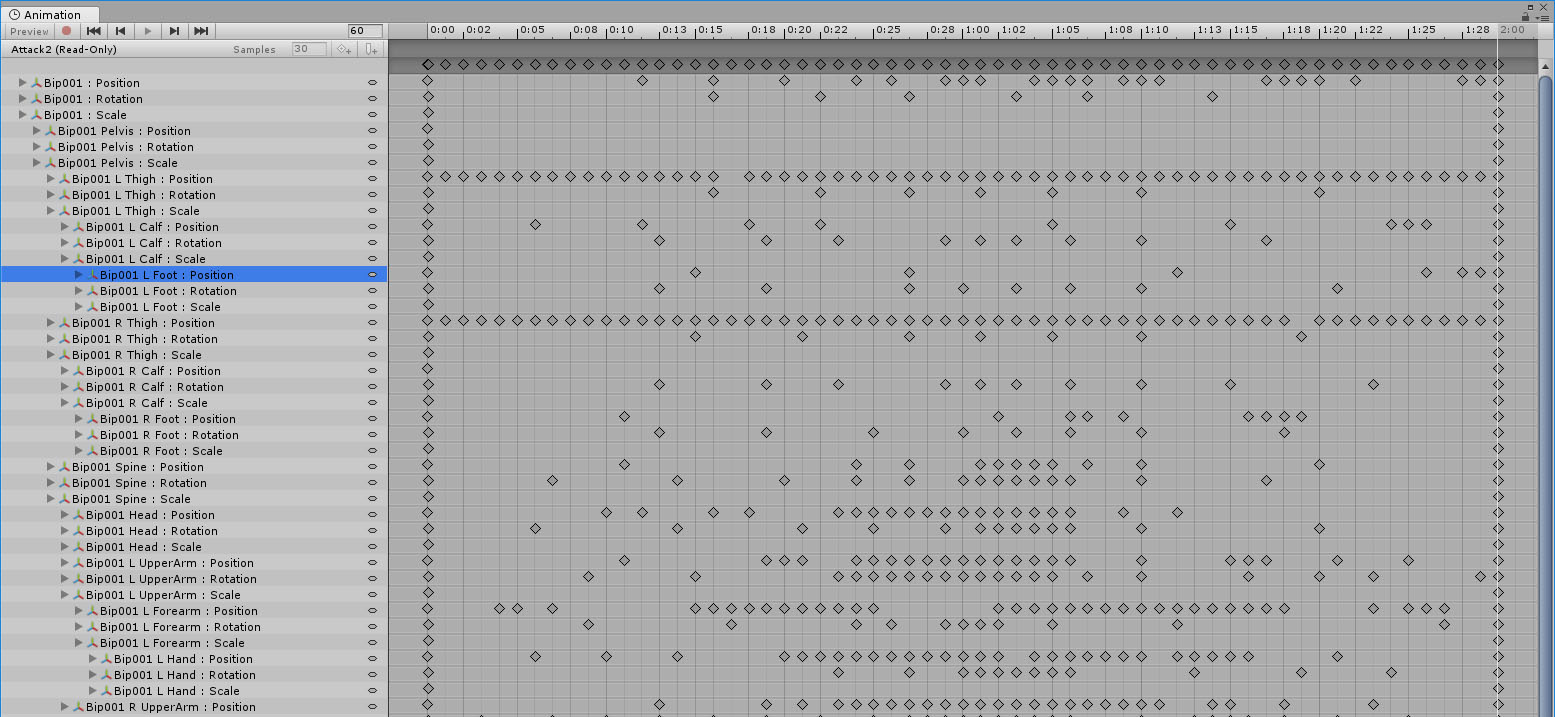
You can see that position, scale, and rotation keyframes are stored separately. Some bones require many keyframes. Others only a few. Bones that aren't animated simply contain an initial and final keyframe. Position is a Vector3. Quaternion is a Vector4. Scale is a Vector3. For simplicity we'll use a single shared keyframe structure. That means we need four floats capable of storing any of the above types. We also need InTangent and OutTangent to perform proper interpolation according to curve shape. And of course normalized time:
struct KeyFrame
{
    float4 v;
    float4 inTan, outTan;
    float time;
};
All keyframes can be extracted using AnimationUtility.GetEditorCurve(). We also need to store bone names because animation bones must later be remapped onto skeleton bones, and those names don't necessarily match. This happens during GPU-data preparation.
After filling linear keyframe buffers, we store offsets allowing us to locate the keyframes belonging to a specific animation.
Now comes the interesting part. Animation on the GPU. We allocate a large buffer:
number_of_skeletons ×
number_of_bones ×
maximum_expected_blend_count
This buffer stores:
- position,
- rotation,
- scale
for every animated bone. A compute shader is launched. Each thread is responsible for animating a single bone. Every keyframe is interpolated identically regardless of whether it represents:
- Translation
- Rotation
- Scale
(Yes, the lookup uses a linear search. Forgive me, Knuth.)
void InterpolateKeyFrame(inout float4 rv, int startIdx, int endIdx, float t)
{
    for (int i = startIdx; i < endIdx; ++i)
    {
        KeyFrame k0 = keyFrames[i + 0];
        KeyFrame k1 = keyFrames[i + 1];

        float lerpFactor = (t - k0.time) / (k1.time - k0.time);
        if (lerpFactor < 0 || lerpFactor > 1)
            continue;

        rv = CurveInterpoate(k0, k1, lerpFactor);
        break;
    }
}
The animation curves are cubic Bézier curves. Therefore interpolation becomes:
float4 CurveInterpoate(KeyFrame v0, KeyFrame v1, float t)
{
    float dt = v1.time - v0.time;
    float4 m0 = v0.outTan * dt;
    float4 m1 = v1.inTan * dt;

    float t2 = t * t;
    float t3 = t2 * t;

    float a = 2 * t3 - 3 * t2 + 1;
    float b = t3 - 2 * t2 + t;
    float c = t3 - t2;
    float d = -2 * t3 + 3 * t2;

    float4 rv = a * v0.v + b * m0 + c * m1 + d * v1.v;
    return rv;
}
After computing the local TRS pose for the bone, a second compute shader blends together all animations affecting that bone. For this purpose we maintain a buffer containing:
- animation indices,
- animation weights.
These values come directly from the state machine.
Now let's deal with BlendTrees. Suppose we have the following hierarchy:
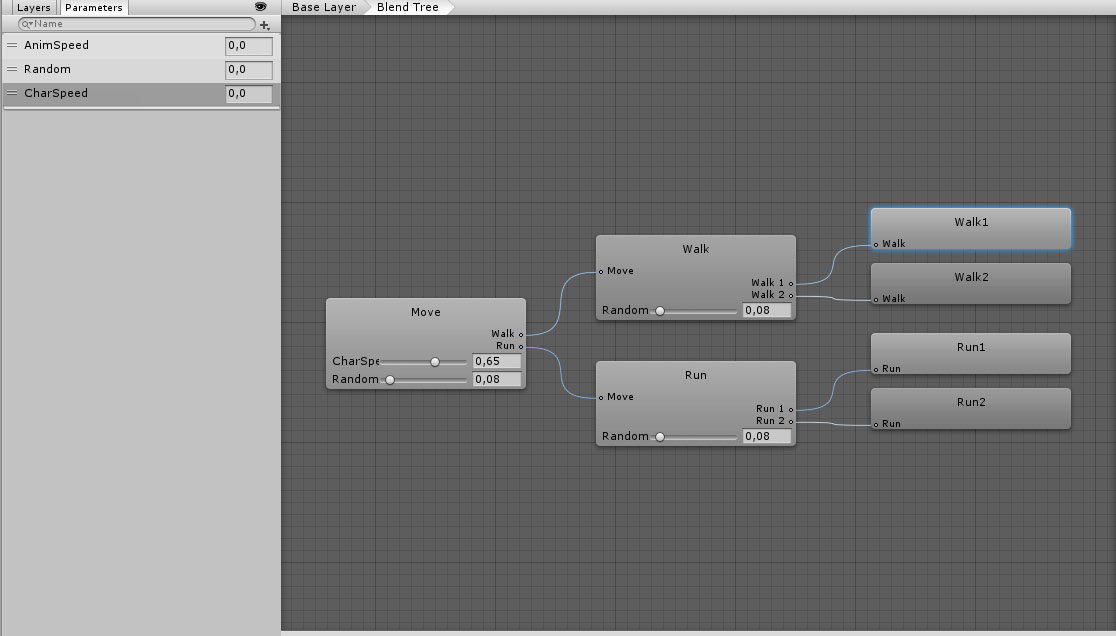
The Walk BlendTree has a weight of 0.35. The Run BlendTree has a weight of 0.65. Consequently, the final bone transform must be determined by four animations:
- Walk1
- Walk2
- Run1
- Run2
Their weights become:
(0.35 * 0.92,
 0.35 * 0.08,
 0.65 * 0.92,
 0.65 * 0.08)

=

(0.322, 0.028, 0.598, 0.052)
One important thing to note: The sum of all animation weights must always equal one. Otherwise magical bugs are guaranteed. The "heart" of the blending function looks like this:
float bw = animDef.blendWeight;

BoneXForm boneToBlend = animatedBones[srcBoneIndex];
float4 q = boneToBlend.quat;
float3 t = boneToBlend.translate;
float3 s = boneToBlend.scale;

if (dot(resultBone.quat, q) < 0)
    q = -q;

resultBone.translate += t * bw;
resultBone.quat += q * bw;
resultBone.scale += s * bw;
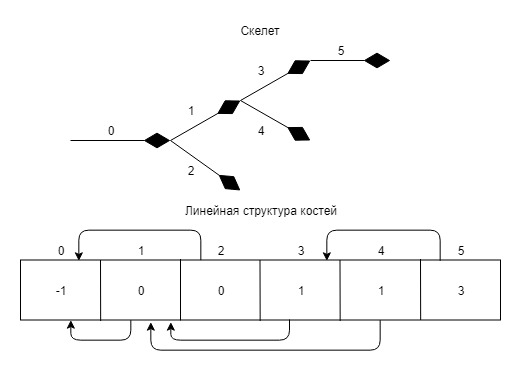
Now we can convert everything into transformation matrices. Wait. We completely forgot about the bone hierarchy. Using skeleton data, we construct an array of indices where each bone stores the index of its parent. The root bone contains -1.
Example:
float4x4 animMat = IdentityMatrix();
float4x4 mat = initialPoses[boneId];

while (boneId >= 0)
{
    BoneXForm b = blendedBones[boneId];
    float4x4 xform = MakeTransformMatrix(b.translate, b.quat, b.scale);
    animMat = mul(animMat, xform);

    boneId = bonesHierarchyIndices[boneId];
}

mat = mul(mat, animMat);
resultSkeletons[id] = mat;
That's essentially all of the important pieces required for animation evaluation and blending.
GPSM
GPU Powered State Machine.
(Yes, you guessed correctly.) The animation system described above could technically work with Unity's built-in Animation State Machine. Unfortunately, doing so would make all of our efforts pointless. Even if the GPU can evaluate tens or hundreds of thousands of animations every frame, Unity Animator won't handle thousands of simultaneously running state machines. Hmm... So what exactly is a Unity state machine? A closed system of states and transitions driven by a small set of numeric parameters.
Each state machine:
- operates independently,
- receives the same type of input data,
- executes essentially the same logic.
Wait a second. That's a perfect job for a GPU and compute shaders.
Baking Phase
First we need to gather all state-machine data and convert it into GPU-friendly structures. That includes:
- states,
- transitions,
- parameters.
Everything is stored in linear buffers and addressed through indices. Each compute thread evaluates its own state machine.
AnimatorController provides access to all required internal state-machine structures.
The primary data structures are:
struct State
{
    float speed;
    int firstTransition;
    int numTransitions;
    int animDefId;
};

struct Transition
{
    float exitTime;
    float duration;
    int sourceStateId;
    int targetStateId;
    int firstCondition;
    int endCondition;
    uint properties;
};

struct StateData
{
    int id;
    float timeInState;
    float animationLoop;
};

struct TransitionData
{
    int id;
    float timeInTransition;
};

struct CurrentState
{
    StateData srcState, dstState;
    TransitionData transition;
};

struct AnimationDef
{
    uint animId;
    int nextAnimInTree;
    int parameterIdx;
    float lengthInSec;
    uint numBones;
    uint loop;
};

struct ParameterDef
{
    float2 line0ab, line1ab;
    int runtimeParamId;
    int nextParameterId;
};

struct Condition
{
    int checkMode;
    int runtimeParamIndex;
    float referenceValue;
};
State contains:
- playback speed,
- indices of outgoing transitions,
- associated animation information.
Transition contains:
- source and destination states,
- transition duration,
- exit time,
- references to transition conditions.
CurrentState stores runtime state-machine data.
AnimationDef describes an animation and references related animations inside BlendTrees.
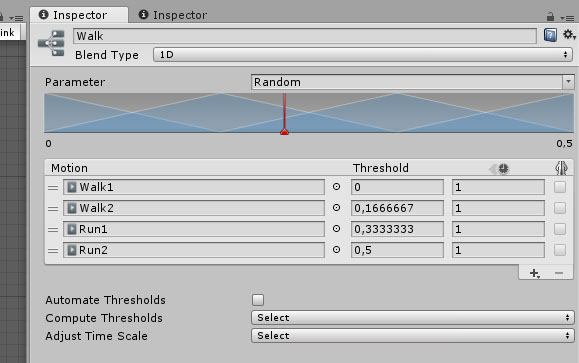
ParameterDef describes parameters controlling state-machine behavior. line0ab and line1ab contain coefficients of linear equations used to determine animation weights from parameter values.
The source of those coefficients is illustrated here:
Runtime Phase
The main loop of each state machine can be represented by the following algorithm:
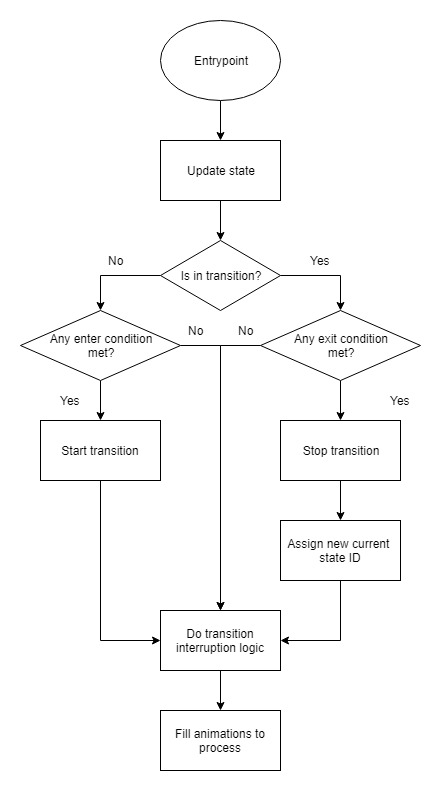
Unity Animator provides four parameter types:
- float
- int
- bool
- trigger
(Triggers are essentially booleans.) We represent all of them as floats. When configuring transition conditions, Unity offers six comparison modes. Since:
If     == Equals
IfNot  == NotEqual
we only need four of them. The comparison operator index is stored in Condition.checkMode. Condition evaluation looks like this:
for (int i = t.firstCondition; i < t.endCondition; ++i)
{
    Condition c = allConditions[i];
    float paramValue = runtimeParameters[c.runtimeParamIndex];

    switch (c.checkMode)
    {
    case 3: if (paramValue < c.referenceValue) return false;
    case 4: if (paramValue > c.referenceValue) return false;
    case 6: if (abs(paramValue - c.referenceValue) > 0.001f) return false;
    case 7: if (abs(paramValue - c.referenceValue) < 0.001f) return false;
    }
}

return true;
All conditions must evaluate to true before a transition can begin. The strange case labels are simply values from:
AnimatorConditionMode
Interruption logic is Unity's rather complicated system for interrupting and rolling back transitions. After updating the state machine and advancing all timestamps by frame delta time, we prepare information describing which animations need to be evaluated this frame and with what weights. This step is skipped entirely if the model is outside the camera frustum. Why animate something nobody can see?
The system traverses:
- the source-state BlendTree,
- the destination-state BlendTree,
collects all animations, and computes weights according to normalized transition time.
With this data prepared, GPAS takes over and evaluates animations for every animated entity in the game. Parameters controlling the state machine come from gameplay logic. For example, if a character needs to start running, we simply set the CharSpeed parameter. A properly configured state machine will then smoothly blend from walking animations into running animations. Naturally, achieving complete compatibility with Unity Animator turned out to be impossible. Whenever Unity's internal behavior wasn't documented, I had to reverse-engineer it and create an approximation. Some features remain unfinished. And perhaps always will. For example, only 1D BlendTrees are currently supported. Supporting other BlendTree types wouldn't be particularly difficult. There's simply no practical need for them at the moment. Animation Events are also unsupported. They would require GPU readback. And a "proper" asynchronous readback introduces a delay of several frames, which isn't always acceptable. Still, it's possible if needed.
Rendering
Unit rendering uses instancing. Inside the vertex shader, SV_InstanceID is used to locate the matrices of all bones affecting the current vertex and perform skinning. Nothing unusual here:
float4 ApplySkin(float3 v, uint vertexID, uint instanceID)
{
    BoneInfoPacked bip = boneInfos[vertexID];
    BoneInfo bi = UnpackBoneInfo(bip);

    SkeletonInstance skelInst = skeletonInstances[instanceID];
    int bonesOffset = skelInst.boneOffset;

    float4x4 animMat = 0;
    for (int i = 0; i < 4; ++i)
    {
        float bw = bi.boneWeights[i];
        if (bw > 0)
        {
            uint boneId = bi.boneIDs[i];
            float4x4 boneMat = boneMatrices[boneId + bonesOffset];
            animMat += boneMat * bw;
        }
    }

    float4 rv = float4(v, 1);
    rv = mul(rv, animMat);
    return rv;
}
Results
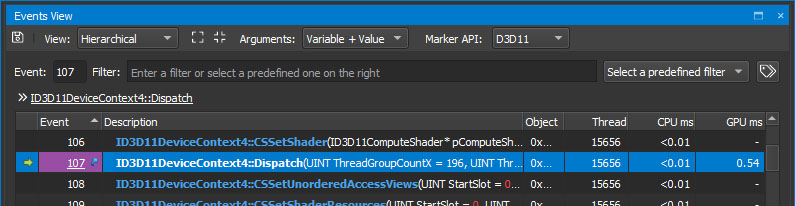
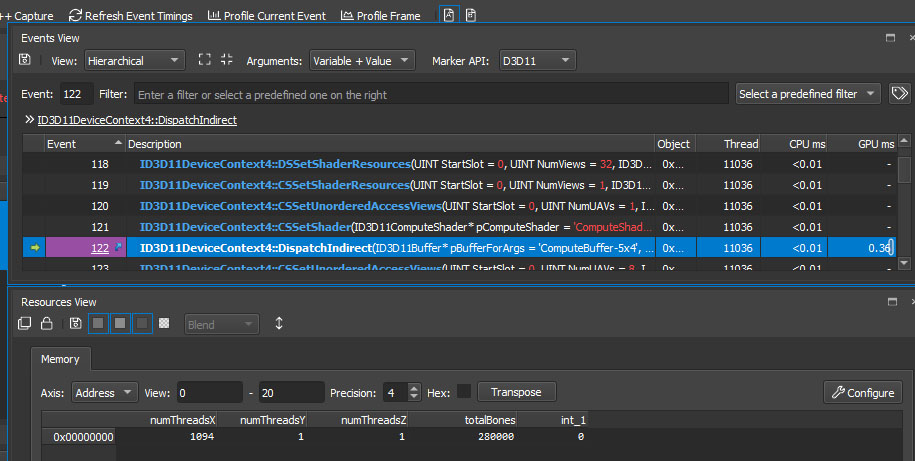
So how fast does all of this run? Clearly slower than simply sampling a texture containing pre-baked matrices. Still, I can share some actual numbers. Hardware:
GTX 970
Here's the performance of 50,000 state machines:
And here's 280,000 animated bones:
Developing and debugging all of this was a genuine nightmare. There are:
- countless buffers,
- countless offsets,
- countless interacting components.
There were moments when I simply wanted to give up. Sometimes you'd spend several days banging your head against a problem without understanding what was wrong. The most "enjoyable" situations occurred when everything worked perfectly on test data but failed under real gameplay conditions. Or when some random animation glitch appeared once every few minutes. Differences between Unity's state-machine behavior and my own implementation weren't always immediately obvious either.
In short: if you decide to build something similar yourself, I do not envy you. Then again, GPU programming has always been like that. No point complaining.
P.S.
I'd like to throw a small stone into the garden of the Unite Tech Demo developers. The scene contains a large number of identical ruins and bridge models. Yet their rendering wasn't optimized. Well, technically they tried. They simply checked the Static checkbox. Unfortunately, there's only so much geometry you can fit into 16-bit indices. (Three times ha-ha. It was 2017.) As a result, nothing was actually combined because the meshes were too high-poly. I enabled Enable Instancing on all shaders and disabled Static. The performance improvement wasn't huge, but come on. You're making a tech demo. You're fighting for every frame per second. You can't afford mistakes like that.
Before
*** Summary ***

Draw calls: 2553
Dispatch calls: 0
API calls: 8378
  Index/vertex bind calls: 2992
  Constant bind calls: 648
  Sampler bind calls: 395
  Resource bind calls: 805
  Shader set calls: 682
  Blend set calls: 230
  Depth/stencil set calls: 92
  Rasterization set calls: 238
  Resource update calls: 1017
  Output set calls: 74
API:Draw/Dispatch call ratio: 3.28163

298 Textures - 1041.01 MB (1039.95 MB over 32x32), 42 RTs - 306.94 MB.
Avg. tex dimension: 1811.77x1810.21 (2016.63x2038.98 over 32x32)
216 Buffers - 180.11 MB total 17.54 MB IBs 159.81 MB VBs.
1528.06 MB - Grand total GPU buffer + texture load.

*** Draw Statistics ***

Total calls: 2553, instanced: 2, indirect: 2

Instance counts:
  1:
  2:
  3:
  4:
  5:
  6:
  7:
  8:
  9:
  10:
  11:
  12:
  13:
  14:
>=15: ******************************************************************************************************************************** (2)
After
*** Summary ***

Draw calls: 1474
Dispatch calls: 0
API calls: 11106
  Index/vertex bind calls: 3647
  Constant bind calls: 1039
  Sampler bind calls: 348
  Resource bind calls: 718
  Shader set calls: 686
  Blend set calls: 230
  Depth/stencil set calls: 110
  Rasterization set calls: 258
  Resource update calls: 1904
  Output set calls: 74
API:Draw/Dispatch call ratio: 7.5346

298 Textures - 1041.01 MB (1039.95 MB over 32x32), 42 RTs - 306.94 MB.
Avg. tex dimension: 1811.77x1810.21 (2016.63x2038.98 over 32x32)
427 Buffers - 93.30 MB total 9.81 MB IBs 80.51 MB VBs.
1441.25 MB - Grand total GPU buffer + texture load.

*** Draw Statistics ***

Total calls: 1474, instanced: 391, indirect: 2

Instance counts:
  1:
  2: ******************************************************************************************************************************** (104)
  3: ************************************************* (40)
  4: ********************** (18)
  5: ****************************** (25)
  6: ********************************************************************************************* (76)
  7: *********************************** (29)
  8: ************************************************** (41)
  9: ********* (8)
  10: ************** (12)
  11:
  12: ****** (5)
  13: ******* (6)
  14: ** (2)
>=15: ****************************** (25)
P.P.S.
Historically, games have almost always been CPU-bound.
The CPU couldn't keep up with the GPU because it was busy handling:
- gameplay logic,
- physics,
- AI,
- animation systems.
By moving part of that workload from the CPU to the GPU, we reduce CPU pressure while increasing GPU utilization. In other words, we make a GPU-bound scenario much more likely. That's exactly where the title of this article comes from.